- A gigabyte (GB) is a measure of computer data storage capacity and is "roughly" a billion bytes. A gigabyte is two to the 30th power, or 1,073,741,824 in decimal notation. The term is pronounced with two hard Gs. The prefix, "giga" comes from a Greek word meaning "giant."
Rabu, 05 November 2008
gigabyte
- A gigabyte (GB) is a measure of computer data storage capacity and is "roughly" a billion bytes. A gigabyte is two to the 30th power, or 1,073,741,824 in decimal notation. The term is pronounced with two hard Gs. The prefix, "giga" comes from a Greek word meaning "giant."
Random Access
RAM (random access memory) is the place in a computer where the operating system, application programs, and data in current use are kept so that they can be quickly reached by the computer's processor. RAM is much faster to read from and write to than the other kinds of storage in a computer, the hard disk, floppy disk, and CD-ROM. However, the data in RAM stays there only as long as your computer is running. When you turn the computer off, RAM loses its data. When you turn your computer on again, your operating system and other files are once again loaded into RAM, usually from your hard disk.
RAM can be compared to a person's short-term memory and the hard disk to the long-term memory. The short-term memory focuses on work at hand, but can only keep so many facts in view at one time. If short-term memory fills up, your brain sometimes is able to refresh it from facts stored in long-term memory. A computer also works this way. If RAM fills up, the processor needs to continually go to the hard disk to overlay old data in RAM with new, slowing down the computer's operation. Unlike the hard disk which can become completely full of data so that it won't accept any more, RAM never runs out of memory. It keeps operating, but much more slowly than you may want it to.
How Big is RAM?
RAM is small, both in physical size (it's stored in microchips) and in the amount of data it can hold. It's much smaller than your hard disk. A typical computer may come with 256 million bytes of RAM and a hard disk that can hold 40 billion bytes. RAM comes in the form of "discrete" (meaning separate) microchips and also in the form of modules that plug into holes in the computer's motherboard. These holes connect through a bus or set of electrical paths to the processor. The hard drive, on the other hand, stores data on a magnetized surface that looks like a phonograph record. Most personal computers are designed to allow you to add additional RAM modules up to a certain limit. Having more RAM in your computer reduces the number of times that the computer processor has to read data in from your hard disk, an operation that takes much longer than reading data from RAM. (RAM access time is in
Why Random Access?
RAM is called "random access" because any storage location can be accessed directly. Originally, the term distinguished regular core memory from offline memory, usually on magnetic tape in which an item of data could only be accessed by starting from the beginning of the tape and finding an address sequentially. Perhaps it should have been called "nonsequential memory" because RAM access is hardly random. RAM is organized and controlled in a way that enables data to be stored and retrieved directly to specific locations. A term IBM has preferred is direct access storage or memory. Note that other forms of storage such as the hard disk and CD-ROM are also accessed directly (or "randomly") but the term random access is not applied to these forms of storage.In addition to disk, floppy disk, and CD-ROM storage, another important form of storage is read-only memory (ROM), a more expensive kind of memory that retains data even when the computer is turned off. Every computer comes with a small amount of ROM that holds just enough programming so that the operating system can be loaded into RAM each time the computer is turned on.
Intel® Core™2 Quad Processors
Introducing Intel® Core™2 Quad processor for notebook and desktop PCs, designed to handle massive compute and visualization workloads enabled by powerful multi-core technology. Optimized for the longest possible battery life without compromise to performance, Intel Core 2 Quad processors for notebooks allow you to stay unwired longer while running the most compute-intensive applications.
Providing all the bandwidth you need for next-generation highly-threaded applications, the latest four-core Intel Core 2 Quad processors are built on 45nm Intel® Core™ microarchitecture enabling faster, cooler, and quieter mobile and desktop PC and workstation experiences.
Plus, with optional Intel® vPro™ technology, you have the ability to remotely isolate, diagnose, and repair infected desktop and mobile workstations wirelessly and outside of the firewall, even if the PC is off, or the OS is unresponsive.
Product information
- Download the processor product brief
File Type/Size: PDF 647KB
Features and Benefits
With four processing cores, up to 12MB of shared L2 cache,¹ and up to 1066 MHz Front Side Bus for notebooks, and up to 12MB of L2 cache² and up to 1333 MHz Front Side Bus for desktops, the Intel Core 2 Quad processor delivers amazing performance and power efficiency enabled by the all new hafnium-based circuitry of 45nm Intel Core microarchitecture.
Whether you're encoding, rendering, editing, or streaming HD multimedia in the office or on the go, power your most demanding applications with notebooks and desktops based on the Intel Core 2 Quad processor.
Plus, with these processors you get great Intel® technologies built in:
Demo

See how the Intel® Core™2 Quad processor is rewriting the rules on what your PC can do.
Talk with the experts
Gain access, share ideas, and discuss hot industry topics with leaders in the IT community on Intel's Open Port.
Compare products
Intel® Wide Dynamic Execution, enabling delivery of more instructions per clock cycle to improve execution time and energy efficiency
Intel® Intelligent Power Capability, designed to deliver more energy-efficient performance
Intel® Virtualization Technology (Intel® VT), enabling greater security, manageability, and utilization
Dual Intel® Dynamic Acceleration technology, improving four-core performance by utilizing power headroom of idle cores by dynamically boosting frequency of active cores
Intel® Smart Memory Access, improving system performance by optimizing the use of the available data bandwidth
Larger Intel® Advanced Smart Cache optimized for multi-core processors, providing a higher-performance, more efficient cache subsystem
Intel® Advanced Digital Media Boost, accelerating a broad range of applications along with Intel® HD Boost utilizing new SSE4 instructions for even greater multimedia performance
Future ready, designed to perform in highly threaded programs with powerful Intel® multi-core technology
Maximum everything. Energy-efficient performance. Multimedia power.
| | ||
| Based on Intel® Core™ microarchitecture, the Intel® Core™2 Duo processor family is designed to provide powerful energy-efficient performance so you can do more at once without slowing down. | |

Intel® Core™ 2 Duo desktop processors
With Intel Core 2 Duo desktop processor, you'll experience revolutionary performance, unbelievable system responsiveness, and energy-efficiency second to none.
Big, big performance. More energy efficient.¹ Now available in smaller packages. The Intel Core 2 Duo processor-based desktop PC was designed from the ground up for energy efficiency, letting you enjoy higher performing, ultra-quiet, sleek, and low power desktop PC designs.
Multitask with reckless abandon. Do more at the same time, like playing your favorite music, running virus scan in the background, and all while you edit video or pictures. The powerful Intel Core 2 Duo desktop processor provides you with the speed you need to perform any and all tasks imaginable.
Love your PC again. Don’t settle for anything less than the very best. Find your perfect desktop powered by the Intel Core 2 Duo processor and get the best processing technology money can buy. Only from Intel.
- • Up to 6MB L2 cache
- • Up to 1333 MHz front side bus
Google Doc, What is it?
The idea of collaborating documents online with friends and colleagues had started when I joined
When I saw how Microsoft Office Live Space works, I shifted my attention to what google has to offer in terms of collaboration and sharing documents, spreadsheets and presentation through the gmail account.
Believe it or not, I never used Google Doc through all these months. In fact, I did not even click the link to see what it was until I had the reason to use it.
The Google Document link can be accessed by logging in to your google gmail account.
Please look at the upper left hand side when you are logged in to your Gmail account.
Google Document location:

The Documents link as seen below.

Clicking the Documents link opens a page as seen below. You can click the image to see the enlarged image.

This is where I shared my document to a friend. I invited a friend whom I trusted at the same time see how this Google Doc works.
Yes, I could just attach my file, end of story. But I don’t want to end that way. I want to use the Google Doc.
Please review this link: http://www.google.com/google-d-s/intl/en/tour1.html
Hope after watching the video, someone will take a second look to my invitation.
Thanks!
Google Browser
Update (September 2008): After two years, Google has released an open source browser. It's called Google Chrome and you can download it from http://www.google.com/chrome. This post has been written for April Fools' Day 2006.
 You want a browser that doesn't use all your RAM.
Firefox is a memory hog.
You want a secure browser.
Internet Explorer is not secure.
You want a fast browser.
Opera is fast, but not that fast.
You want a cross-platform browser.
Safari is definitely not cross-platform.
You want a browser that doesn't care about JavaScript.
Netscape cares about JavaScript - they invented JavaScript.
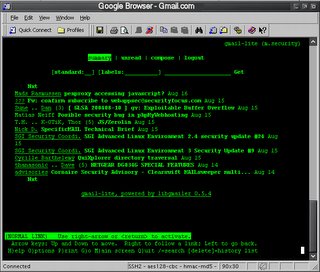
Presenting you Google Browser, a fast, versatile and secure text browser for the Internet. Google Browser is free, already out of beta, and the installer has only 1.68 MB.
Just open it, type g (that's from Google), enter a URL, press enter and visit the web through Google's eyes.
Download Windows version
Download Mac version
Download Linux version
Tutorial
Google mentions that Linux users should compile the downloaded package. Google Browser is the first major Google software released for Linux.
Note: This post was written for the April Fools' Day, so there's no Google Browser. At least not yet.
 You want a browser that doesn't use all your RAM.
Firefox is a memory hog.
You want a secure browser.
Internet Explorer is not secure.
You want a fast browser.
Opera is fast, but not that fast.
You want a cross-platform browser.
Safari is definitely not cross-platform.
You want a browser that doesn't care about JavaScript.
Netscape cares about JavaScript - they invented JavaScript.
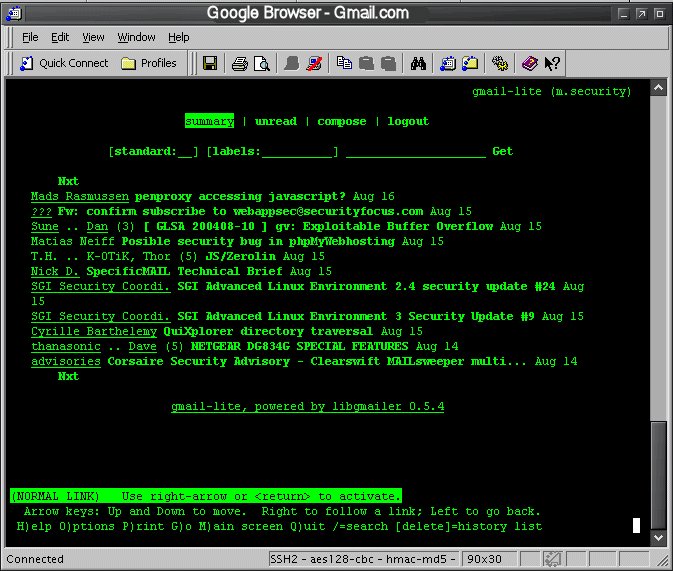
Presenting you Google Browser, a fast, versatile and secure text browser for the Internet. Google Browser is free, already out of beta, and the installer has only 1.68 MB.
Just open it, type g (that's from Google), enter a URL, press enter and visit the web through Google's eyes.
Download Windows version
Download Mac version
Download Linux version
Tutorial
Google mentions that Linux users should compile the downloaded package. Google Browser is the first major Google software released for Linux.
Note: This post was written for the April Fools' Day, so there's no Google Browser. At least not yet.
How to Meet the Health Check Secure VPN Security Requirements
Overview
The Secure VPN Network Connect session establishes an Internet connection from your remote computer to the University computer network as a trusted device. To reduce the chances of an infected computer passing viruses via this connection, a new service has been implemented called Health Check which checks configuration settings on your computer each time it connects to Network Connect. If the requirements are not met, the computer is at a greater risk of being infected and will be denied access to Network Connect. This does not mean that your computer is infected with a virus. It does mean that your computer is vulnerable to being infected with a virus. In order to pass Health Check, your computer must meet the following criteria:
Operating system is Windows XP with Service Pack 2 or Windows Vista. (Macintosh and Linux systems are not being checked at this time.)
Microsoft Automatic Software Update turned on so you can receive the latest security patches.
The latest version of Symantec Anti-Virus with LiveUpdate turned on so you can receive the latest virus definitions.
A software firewall must be installed and enabled on your computer.
Windows XP with SP2 or Windows Vista
If your computer has a Microsoft operating system that is older than Windows XP (Windows 98 or 2000), you will have to upgrade to Windows XP or Windows Vista to access network connect. Windows XP or Windows Vista is the required Microsoft operating system because it has significant security enhancements over the earlier versions of Windows. As a University affiliate, you can obtain copies of Microsoft Campus Software, which includes Windows XP or Windows Vista and Office 2003, from Software Licensing Services for use at work and home. SLS is able to provide software at significantly reduced costs through the University's agreement with software vendors.
Microsoft Automatic Software Updates
Your computer must be configured to automatically check for and install Microsoft Automatic Software Updates. The updates are released by Microsoft on the second Tuesday of every month, and address security vulnerabilities and bug fixes for Microsoft products. The following steps will configure your computer to receive automatic updates.
From the Start menu, select Control Panel.
Double click on the Security Center icon.
Under Manage security settings for, select Automatic Updates.
Any of the automatic options are acceptable, but it is recommended that users select Automatic with installation on a daily schedule. The default time for installation is 3:00 am, but it can be set to any time that is convenient for you.
CSSD also offers an automatic update service from updates.pitt.edu. Information on the service, software download, and configuration are available at the web site.
Symantec AntiVirus and LiveUpdate
The latest version of Symantec AntiVirus must be installed on your computer, and it must be configured to run LiveUpdate automatically. Symantec AntiVirus is the recommended and supported software of the University for anti-virus protection. It is available to all faculty, staff and students of the University for free and can be used in the office and at home use. Symantec AntiVirus can be found on the Toolkit CD, available in campus computing lab, or downloaded from software.pitt.edu.
LiveUpdate is a critical component of Symantec AntiVirus. This feature is activated by default during installation and checks for the latest anti-virus and anti-spyware definitions available from Symantec. When new definitions are available, LiveUpdated downloads and installs them on your computer.
Directions on downloading and installing Symantec AntiVirus are available on technology.pitt.edu in the Help section under Help Sheets and General Information.
Personal Firewalls
A personal firewall is a software application used to protect your computer against intruders when the computer is connected to the network. The firewall can be configured to control network connections to and from your computer, filtering traffic that comes into or leaves your computer, and alerting you to attempted intrusions. Health Check verifies if any of the following firewalls are installed and activated on your computer. This list will be updated as new personal firewalls are made available.
AOL Firewall (1.x)
AOL Privacy Wall (2.x)
BlackICE (7.x)
eTrust EZ Firewall (5.x)
eTrust Personal Firewall (5.x)
Integrity Agent (6.x)
Integrity Client (4.x)
Integrity Desktop (5.x)
McAfee Desktop Firewall 8.0
McAfee Personal Firewall Plus (7.x)
Microsoft Windows Firewall (XP SP2)
Microsoft Windows Internet Connection Firewall (XP SP1)
Norton Internet Security 2006 (Symantec Corporation) (9.x)
Norton Personal Firewall 2006 (Symantec Corporation) (8.x)
Proventia Desktop (8.x)
Sereniti Firewall (1.x)
Sunbelt Kerio Personal Firewall (4.x)
Sygate Personal Firewall Pro (5.x)
Symantec Client Security (10.x)
The River Home Network Security Suite (1.x)
Tiny Desktop Firewall 2005 (6.x)
Tiny Firewall Pro (6.x)
Trend Micro OfficeScan Client (7.x)
Trend Micro PC-cillin Internet Security 2005 (12.x)
Windows Live OneCare (1.x)
Zone Labs: ZoneAlarm Pro and Zone Labs Integrity
ZoneAlarm (6.x)
ZoneAlarm Anti-virus (6.x)
ZoneAlarm Pro (6.x)
ZoneAlarm Security Suite (5.x)
ZoneAlarm with Antivirus (5.x)
If you do not have a personal firewall on your computer, you can use the Windows Firewall that is built into Windows XP SP2. To enable Windows Firewall:
From the Start menu, select Control Panel.
Double click on the Security Center icon.
Under Manage security settings for, select Windows Firewall.
Select On to enable the firewall and click on OK.
Langganan:
Postingan (Atom)